

This post was originally published on here
This article was first published in early 2025 in response to news that Amazon was restricting the ability to download Kindle files to your computer. Now, we’re learning about an even more challenging restriction:
As of May 20, 2026, users of all Kindle devices released before 2013 will be completely cut off from the Kindle ecosystem. You will not be able to purchase, borrow, or download new content via the Kindle Store.
In response to this unprecedented and draconian restriction, we’re updating this article. Because while you may not be able to access the Kindle ecosystem, you can use your pre-2013 Kindle devices with e-books going into the future. This article will show you how.
Also: Amazon is ending support for 8 Kindle models next month: Is yours on the list?
When my wife’s beloved Kindle DX was bricked by obsolescence through no fault of her own, it gave me a frisson of excitement and anticipation to take on Darth Bezos and break open the Kindle so she could once again read her favorite books on one of the largest-format Kindle devices ever made.
The practice is called jailbreaking, and in most cases, it’s fairly dangerous.
Jailbreak with caution
For example, it’s a very bad idea to jailbreak your phone. According to one study, rooted (jailbroken) Android devices are subject to 3.5 times more malware attacks. Far, far worse are system compromises caused by rooted devices being carried past a company’s firewall. Those have surged to 250 times the number on non-rooted devices.
Old Kindles like my wife’s DX are obsolete precisely because they can’t maintain a network connection. The DX used to connect to Amazon through 3G networks, most of which have been dismantled. So all jailbreaking does on that device is allow some books to actually be read.
Also: Got an old Kindle? How to resurrect it from the dead with fresh e-books
Last year, she wanted to do a spring cleaning on her DX, so she factory reset it, thinking she’d be able to download her library again. But because she couldn’t get a network connection, she couldn’t register the device. Therefore, she couldn’t wirelessly load any books onto it. Other older Kindles have difficulty registering because their network security is quite obsolete and cannot authenticate with Amazon’s servers.
Rather than turning all those devices into just so much electronic waste, it’s possible to jailbreak them and install open-source e-book reading software. That can give them years more life.
In this article, I’ll take you through the process of jailbreaking my wife’s Kindle DX. Each device has its own methodologies, so use this as a guide to the general approach. Unless you also have a DX, you’ll have to do some of your own research and reading.
Also: 7 reasons Kindles are still a great buy, even without downloads
Jailbreaking devices such as Kindles falls into a legal gray area under the Digital Millennium Copyright Act (DMCA), which was designed to prevent the creation and distribution of tools used to bypass digital protections. While modifying your own device to access content you already own might seem reasonable, the legality may vary depending on the situation.
To be clear: ZDNET does not encourage or condone using jailbroken devices to break the law. It’s up to each user to understand and follow applicable laws around digital rights management and device modification. If you’re unsure whether jailbreaking is legal in your case, it’s best to check with a legal expert.
And, with that, let’s dig in.
Which Kindle do you have?
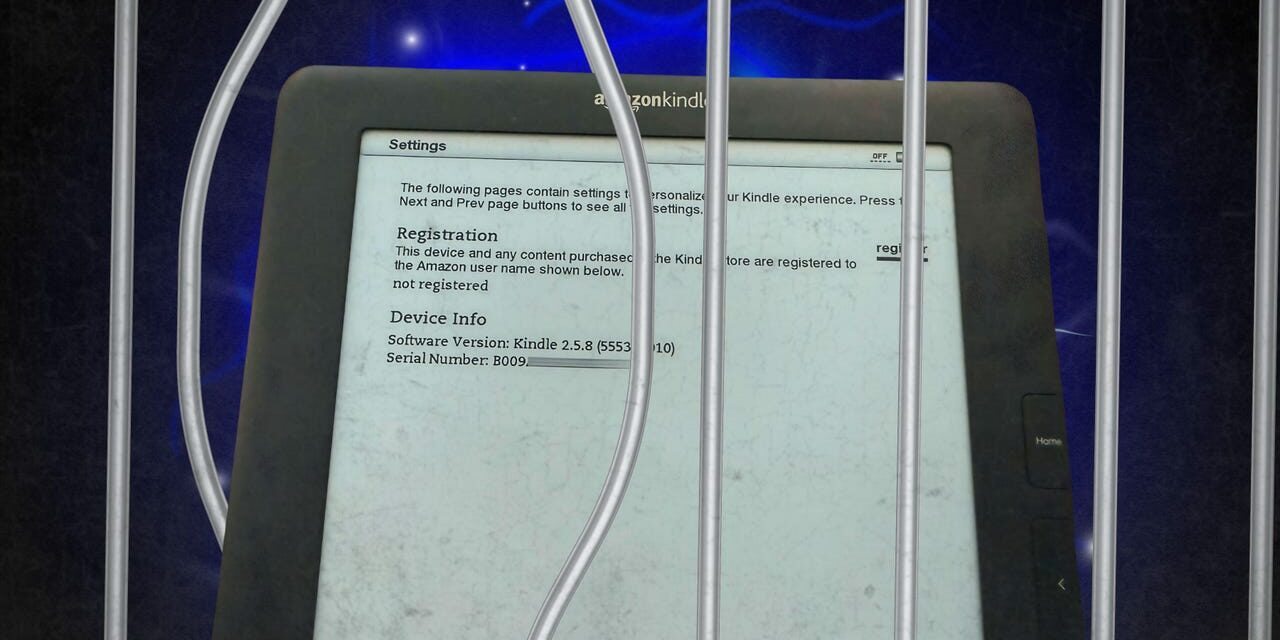
The starting point for this entire process is for you to identify both the Kindle model you’re working with and the firmware currently installed on it. You can find both from the Settings menu on your Kindle.
My serial number begins with B009, and I’m running firmware 2.5.8. With that information, you can jump to the Kindle Serial Numbers wiki page, find your serial number prefix, and then your Kindle nickname code. In my case, B009 indicates I’m running a Kindle DX Graphite, which is known as DXG.
This will help you determine where to start your jailbreak process. If you have a more modern Kindle, head over to the Jailbreak page on the MobileRead forums. Because I’m working with the considerably older Kindle DX, I’m starting with a thread specifically on jailbreaking the DX.
Also: How to easily convert EPUB files to Kindle format in minutes
Depending on what device you have, you’ll need to dig around for instructions and files. Since I’m using the DX, that’s the path I’ll document here.
Jailbreak your Kindle
The process of doing this is kind of like finding pieces of a treasure map. You start with one clue and follow it for a while, then branch off following a different clue. In our case, the clues are message board posts. The bits of treasure are the files linked to on those boards.
And, yes, this is a bit of a risky process. You will be downloading unverified files from random forums on the internet. Anything could be attached as a payload. The only saving grace is that these are very well-populated and regularly updated pinned posts, so hopefully, the jailbreak community would find and expose any unsavory payloads.
Also: How to add EPUB, MOBI, and PDF files to your Kindle – no converting required
That said, caveat downloader. For the record, my wife (who reads Latin) says “caveat” means “let a person beware.” That works in this context.
My next step was to go to the files page for 2.x, 3.x, and 4.x firmware versions. I downloaded the kindle-jailbreak-0.13.N.zip file to my PC.
I then unzipped that jailbreak ZIP file and found a pile of different jailbreak files, each meant for a specific configuration.
Next, I plugged a Micro USB cable into my Kindle DX and connected it to my PC. That put my Kindle in USB Drive Mode.
I opened the Kindle drive from Windows and dragged the Update_jailbreak_0.13.N_dxg_install.bin file to my Kindle’s root directory.
Note that I specifically chose the version with “dxg.” This harkens back to our earliest step, where I found the nickname code for my Kindle. It was DXG, so I installed the dxg_install_bin file.
The next step is to run the update. This is accomplished first by ejecting and unplugging the Kindle from the PC. I pressed the physical menu button on the Kindle DX, then selected Update Your Kindle.
Now, here’s where it got a little freaky. OK, it’s been freaky the whole time, but this one was a bit more disturbing. First, the Kindle will perform the update.
Then, when the update completed, the Kindle reported a failure, with a tiny U006 error in the lower left of the screen. Fortunately, the jailbreak instructions say, “It’s completely normal, intended, and harmless.”
So, yeah, trust the process.
Install the MobileRead Kindlet Kit
Next up, I needed to install an MKK file (MobileRead Kindlet Kit), which appeared to install some sort of developer certificate. This is documented on this page and will redirect you to another page to find and download the file.
I downloaded the MKK zip file and extracted its contents.
Once again, there was a -dxg- binary in the directory, so I uploaded that to my Kindle DX. Next, I ejected my Kindle and ran the Update Your Kindle process. It took a few minutes and some fiddling to get the “Update Your Kindle” option to appear.
I wound up restarting the Kindle, navigating to Settings, and then hitting Menu. Then Update Your Kindle was presented, and I selected that option.
Also: The best reading tablets: Expert tested
This time, the Kindle reported that the update was successful.
Install Launchpad to test the jailbreak
There are two launchers available for jailbroken Kindles. One is Launchpad, which works on older Kindles. The other is called KUAL (Kindle Unified Application Launcher). Launchpad uses Kindle key sequences to launch apps. KUAL uses a GUI to launch apps.
KUAL does run on the DX, but it is a bit fussy to set up, especially since I hadn’t yet confirmed that the jailbreak actually worked. Launchpad sets up quite easily, and I used it strictly as a quick way to confirm I could add apps to the Kindle and run them.
So, I installed Launchpad.
In what’s becoming a pattern, I downloaded the Launchpad zip file and unzipped it. Then, I found the appropriate bin file and uploaded that to the root directory of my Kindle. I switched into Settings, then Menu, then ran Update Your Kindle.
Launchpad has a bunch of predefined key sequences. Once the Kindle is mounted as a drive, you can open the launchpad directory and view the contents of servicecmds.ini. One such command is SHIFT S, which will put your Kindle into screensaver mode.
Also: Kindle Scribe vs. ReMarkable Paper Pro: I’ve used both E Ink tablets, and this one wins
To test if Launchpad works, eject the Kindle from your computer. Then, on the Kindle, press the shift key twice, followed by the S key, all in rapid succession. This should display a small “success” prompt in the lower-left corner of the screen and put the Kindle into sleep mode (displaying one of its famous graphics).
When this worked for me, it indicated that a lot was working. It meant that the main jailbreak had succeeded because I was able to run an additional non-Amazon app. And it meant that I could run localized commands, even if the interface is a bit clunky.
Where this tool is particularly powerful is that it lets you define hotkeys that run scripts on your Kindle. That’s beyond the scope of this article, but go to the launchpad directory at the root of your Kindle device and read the README file. It will get you started if you want to set up hotkeys.
Install KUAL to launch applications
Now, it’s time to install KUAL (the Kindle Unified Application Launcher). It’s available from the MobileRead Snapshots page. I downloaded the first KUAL tar file and extracted the files.
Also: My favorite Kindle accessory seriously upgraded my reading experience (and it only costs $20)
Installation is different for KUAL compared to what I did previously. The README file describes different procedures depending on which Kindle you’re using. For my old Kindle DX, I put the Kindle back into USB drive mode, then dragged the KUAL-KDK-1.0.azw2 file into the Kindle’s documents folder.
This makes KUAL show up as a book on the Home page. Just click it to launch. And no, I’m not sure what those letters mean to the right of the name.
Unfortunately, I ran into a snag, as shown in the screenshot below.
To overcome this, I read this forum post and downloaded this time and date fix from one of the forum users. It’s an update file, so unzip it, drag the bin file for your device to the mounted Kindle root folder, eject the Kindle, and run Update Your Kindle.
Also: 5 hidden ways to upgrade your Kindle without paying full price
Different Kindle models may run into different but similar problems. The file I’m linking to above is for Kindle DX models only. If you run into the same problem with a different device, do what I did: paste the error message into Google along with the string “KUAL” and start treasure hunting.
Once that update process completed, clicking on KUAL launched a screen that showed just KUAL itself. Here’s what it looked like after I installed the KOReader e-book reader. (That’s next.)
Install KOReader
KOReader is a very customizable e-book reader that supports EPUB, PDF, DjVu, XPS, CBT, CBZ, FB2, PDB, TXT, HTML, RTF, CHM, DOC, MOBI, and ZIP files. Let’s get started with the install.
There are four different KOReader builds for the Kindle. To determine which version is for your device, check out this page. Because I’m using the Kindle DX, I downloaded the Legacy version from the KOReader distribution page.
Also: I’ve been a Kindle user for over a decade – here’s why the Paperwhite is still my top choice
Installing is a matter of unzipping the distribution file, then dragging the KOReader folder to the root level of the Kindle, the contents of the Launchpad folder to the Launchpad folder on the Kindle, and the contents of the Extensions folder to the Extensions folder on the Kindle.
Once that’s done, just launch KUAL, wait a moment, and then click into KOReader.
The interface takes a few minutes to get used to, and navigation is quite slow on the Kindle DX. That said, page flips aren’t terrible, so the actual reading experience seems just as nice as when the DX could download and display all my wife’s Kindle books.
She was initially grumbly about the KOReader interface and navigation, but once she got a book open, she expressed her usual pleasure at how nice reading is on the DX.
New life for old electronics
We started with a once-cherished device that was absolutely unusable because the connectivity infrastructure it relied on had been shut down a few years earlier. I spent a few hours lobbing profanities (the real-world analog to Harry Potter’s “Alohomora” magic spell). And now, we have a working device once again.
Huge thanks to the dedicated coders and forum members who developed and documented these jailbreaks for the benefit of the Kindle community. Speaking of the Kindle community, their posts helped me a lot, and they might help you.
Also: E-books are more expensive now, too – 5 ways I find good free Kindle reads
Don’t blame me if you break, brick, or blow up your Kindle. Do this at your own risk. Don’t ask me for tech support. This is all very device-specific. Don’t think you’re the one special person I’ll answer a tech support request for. (I’m talking to you, Uncle George.) May the Force be with you.
Our DX is back from the dead and better than ever.
What do you think about repurposing obsolete hardware instead of sending it to the landfill? Let us know in the comments below.
You can follow my day-to-day project updates on social media. Be sure to subscribe to my weekly update newsletter, and follow me on Twitter/X at @DavidGewirtz, on Facebook at Facebook.com/DavidGewirtz, on Instagram at Instagram.com/DavidGewirtz, on Bluesky at @DavidGewirtz.com, and on YouTube at YouTube.com/DavidGewirtzTV.
More how-tos