

This post was originally published on here
This article was originally published in early 2025 in response to news that Amazon was restricting the ability to download Kindle files to your computer. Now, we’re learning about an even more challenging restriction:
As of May 20, 2026, users of all Kindle devices released before 2013 will be completely cut off from the Kindle ecosystem. You will not be able to purchase, borrow, or download new content via the Kindle Store.
Also: Amazon is ending support for 8 Kindle models next month: Is yours on the list?
In response to this unprecedented and draconian restriction, we’re updating this article. Because while you may not be able to access the Kindle ecosystem, you can use your pre-2013 Kindle devices with e-books going into the future. This article shows you how.
Other articles in this series
It all starts with a factory reset
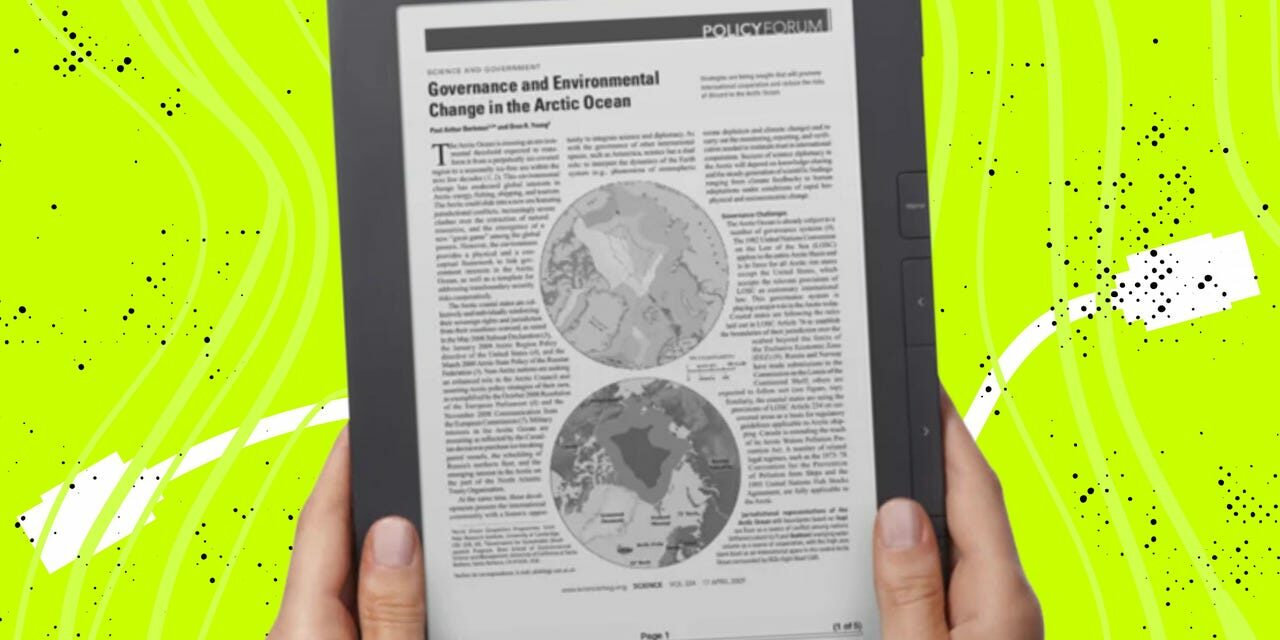
As a tech professional, there are many things I know because I know them. But I also learn things because it’s my job to fix the tech problems around the house. In this case, my wife had performed a factory reset on her cherished Kindle DX, which she purchased more than 10 years ago. After the reset, she couldn’t download any of her books.
She wanted to clean the Kindle of all its cruft. Every book she ever bought, up until the last time she powered up the machine, had been on that device before the reset. She thought a factory reset would be the fastest way to start with a clean slate.
It was indeed a clean slate. All that was left was a dictionary and a user guide, both installed during the reset process. She couldn’t download anything else she wanted on it.
Also: This simple Kindle accessory has seriously upgraded my reading experience – and it’s on sale
I don’t use Kindles nearly as much as she does. I have one entry-level Kindle, which I read in the biologitorium, but that’s about it. I like keeping a Kindle there because it’s always available and nearly always has enough charge for bio-break sessions.
As for my wife’s Kindle DX issue, it took a bit of Googling to figure out that the DX never supported Wi-Fi. The device did, however, come with full-time 3G cellular support, which is how she had loaded books on it throughout the years.
Read that last paragraph and note that I’m writing this article in 2026, not 2014. In 2014, we had 3G. By 2026, most of the major carriers in the US will have shut down their 3G networks. Amazon has also phased out support of 3G for the Kindle Generation 1, Kindle Generation 2, and Kindle DX.
That left us with the question of how to get books back on her cherished DX. The Kindle DX has a 9.7-inch display. While she does have a more modern Kindle she could use, it’s not that big. Amazon does make the 10.2-inch Scribe, but at $318, she’d rather keep using the DX, especially since it’s in perfectly workable condition.
Warning: Do not unregister your old Kindle
While figuring out how to put books back on that discontinued device, I learned some things people with older devices may need to know. I also learned about one action that — if you do it — you can’t really recover from.
Also: Select Prime members can get Kindle Unlimited for 3 months at no cost – here’s how
Here’s a quick summary of what I learned:
- You can’t transfer books wirelessly to the Kindle 1, Kindle 2, and DX anymore.
- You can download e-books (but not Kindle e-books) to your computer and then upload them to the discontinued devices via USB.
- If you still have the obsolete Kindle registered to your device and downloaded Kindle books before the download cutoff in February 2025, any Kindle books you downloaded should be compatible.
- But if you have to download Kindle books on a newer device, newer books will only download in a newer file format that is incompatible with older Kindles.
- If you have a Kindle produced before 2013, as of May 2026, you will no longer be able to download Kindle books to your Kindle device, period.
So, if you ever want to use an older Kindle, never, ever unregister it. Likewise, you won’t be able to gift that older Kindle to someone else, because they won’t be able to register it.
Gather your USB cables
For Kindles that no longer support wireless connectivity, you’ll need to turn to USB. All Kindles, from Generation 1 on, can be turned into mountable USB drives via their USB connection.
My wife’s Kindle DX uses a micro-USB connector, as does the Generation 2 Kindle. The Generation 1 Kindle uses a mini-USB connector. To mount the device as a drive on your computer, connect the Kindle to your computer via USB.
Also: The best reading tablets: Expert tested and recommended
We found out that not all cables will work. We tried two cables known to work with other devices, but the Kindle still didn’t respond. It wasn’t until we tried a third cable that it properly responded. Here are cables that should work, one made by Monoprice, and one from Amazon Basics. Beyond that, I don’t have any guidance on selecting a cable, but if at first it doesn’t work, try, try again with different cables. My other big tip is to check for the “Free Returns” mention right under the price.
We tested the connection on both a Windows 11 machine and her M2 MacBook Air. Once we found the right cable, this process worked in both environments. I’ll show you screenshots from a Mac because that’s her daily driver.
Once the cable is connected, you’ll get a permissions request on your computer like this:
At this point, your Kindle becomes a glorified USB drive.
How to give your old Kindle a new lease on life
Here you have a number of options. You can move non-Kindle e-book files to your Kindle, you can move a variety of other formats (including PDF) to your Kindle, and more. ZDNET has published a series of articles with the steps, tips, and techniques to get the most out of your older Kindles. Here are five great resources to get you started.
1. If you want to move e-book files to your Kindle
Are you struggling to transfer e-books to your Kindle? Here’s the step-by-step process for moving EPUB, MOBI, and PDF files to both new and old Kindle devices via both USB and Amazon’s cloud.
Also: How to add EPUB, MOBI, and PDF files to your Kindle – no converting required
2. If you want to convert e-book file formats to something your Kindle can read
Do you have non-Kindle e-books? If your format isn’t accepted by Kindle file transfer, try this. Here’s how to convert e-book formats, giving you more control over your digital library.
Also: How to easily convert EPUB files to Kindle format in minutes
3. If you want to transform your Kindle into an open-source e-book reading powerhouse
Tired of all the limitations of your old Kindle, but don’t want to scrap that once-expensive hardware? Your old Kindle’s not dead yet. It’s just waiting for a jailbreak. Here’s how it’s done.
Also: How to transform your old, obsolete Kindle into the ultimate open-source reader
4. If you’re still on the fence about getting a Kindle
Considering a Kindle? With Amazon tightening control over e-books, is it still worth it? Here’s what you need to know. For the record, I bought my little base-model Kindle after February, and I’m quite happy with it.
Also: 7 reasons Kindles are still a great buy, even without downloads
5. If you want to save some bucks upgrading to a new Kindle
Amazon has secret ways to slash Kindle prices, and most shoppers miss them. Here’s how to stack discounts, earn cashback, and score bonus deals to save big on your upgrade.
Also: 5 hidden ways to upgrade your Kindle without paying full price
Do you have an old Kindle you’d like to resurrect? How many Kindle books do you have? What’s your favorite Kindle book or book series? Let us know in the comments below.
You can follow my day-to-day project updates on social media. Be sure to subscribe to my weekly update newsletter and follow me on Twitter/X at @DavidGewirtz, on Facebook at Facebook.com/DavidGewirtz, on Instagram at Instagram.com/DavidGewirtz, and on YouTube at YouTube.com/DavidGewirtzTV.