

This post was originally published on here
Follow ZDNET: Add us as a preferred source on Google.
ZDNET’s key takeaways
- A recent update improves picture quality on LG C5 and G5 TVs.
- The update makes Dolby Vision content brighter and more vivid.
- All picture modes except Filmmaker Mode are affected.
Just days after giving some users a free audio upgrade, LG is providing a free visual upgrade — and some people are noticing a big difference.
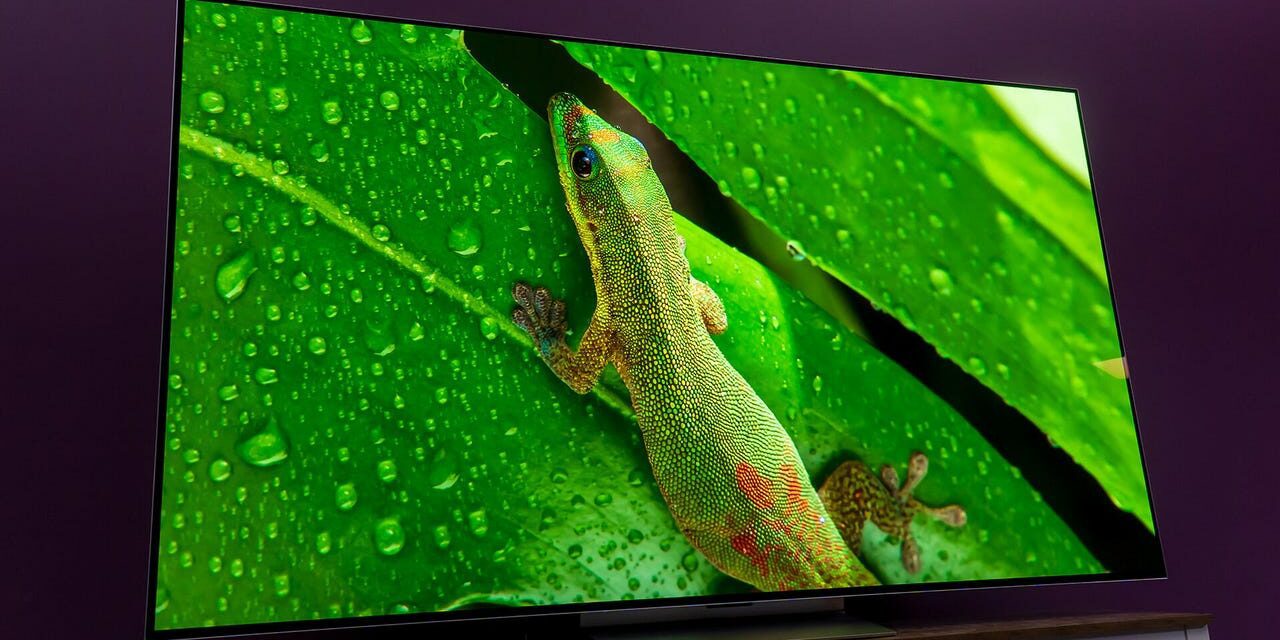
A recent update makes changes to how Dolby Vision content appears on the C5 and G5 TVs. Specifically, it makes images significantly brighter and lessens shadows. Dolby Vision being too dark has been a common complaint from LG users, especially those watching in bright rooms where sunlight or other bright lights are shining on the screen.
In before-and-after images, the difference is striking. Given that the C5 has a fairly impressive brightness compared to its counterparts, it makes sense that the upgrade would be most noticeable on that set.
Also: LG G5 vs. LG G4: I spent hours testing both OLED TVs, and this model was the surprise winner
One Reddit user shared an image of the latest version’s changelog, which notes that “this update is a specific picture quality fix addressing user complaints regarding Dolby Vision brightness,” adding that the fix resolves an issue where Dolby Vision content (usually in Cinema Home mode) appears significantly darker than standard HDR10 content. LG added that the update also impacts Cinema Home, Vivid, Game, and Standard modes, but doesn’t affect Filmmaker Mode, which it leaves alone to preserve creator intent.
That last part is important. While Dolby Vision strives to keep the “creative vision of content producers,” it can sometimes clash with living room viewing situations. Giving people access to a better picture for their situation while leaving Filmmaker Mode untouched gives you the option to pick which one you prefer.
You can tell if you have the update by looking for software version 33.30.92. Go to your settings menu, then “All Settings” and find “Support.” Click on “Software Update,” and you’ll see what version you’re running. You can check for updates if you don’t have the latest version and turn on auto updates.